
The A-Z of Azure: T is for Tags
A beginner's guide to organising, tracking, and managing your cloud resources.
Introduction
So far in the series, we've covered Subscriptions and we've covered Resource Groups. For the third entry in the series I want to cover tagging or tags, I skipped over these in my previous entry for this reason alone in that I wanted to do an entire post about tagging and well here it is! I'll cover what tags are, what they are for and why they are one of the most important elements in your journey to learning Azure.
What are Azure Tags?
First and foremost, tags are a form of metadata that hense the name you can tag onto your various cloud resources such as your virtual machines or storage accounts. Tags consist of a what are called a 'Key Value' pair, this pair consists of both a 'Name' and then a 'Value' key
You can think of the 'Name' (or Key) field as a kind of title or category label. This will define the the specific property you want to track across your various resources, some common examples include:
Environment,Department, orCostCenter.The 'Value' field provides the specific detail or data assigned to the name field, if we use the
Departmentname as an example. The value field might say something likeFinanceas that resource belongs to the the finance team.
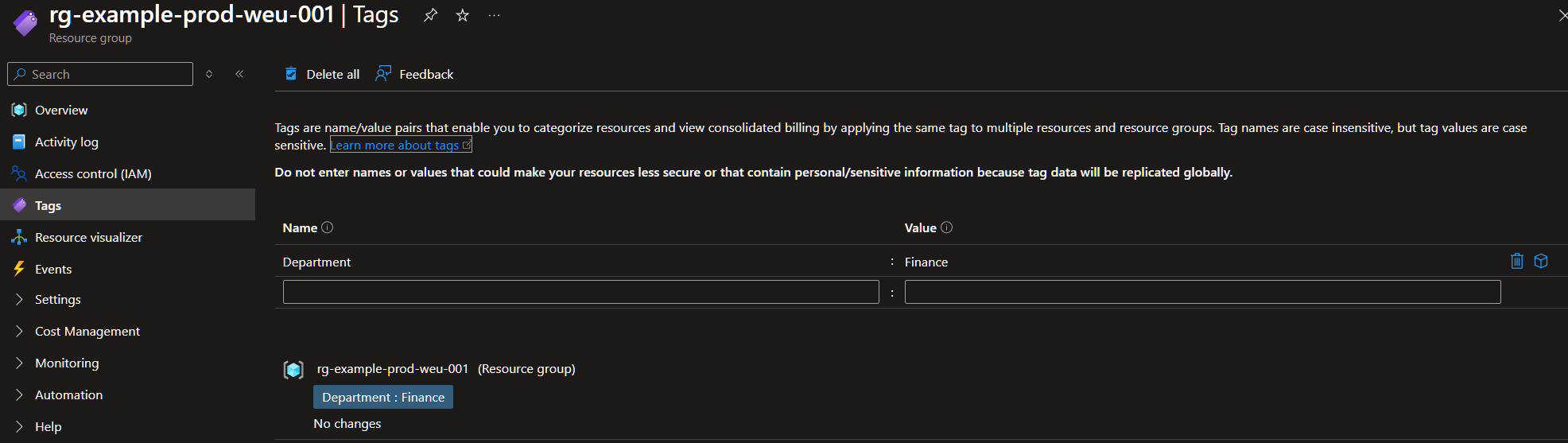
Now to show what that looks like in practical terms, here we have our example resource group. Under Tags, I've applied our Department name, and our Finance value. If I wanted to add more tags, then all I simply do is type in another name with a matching value and hit apply to my Resource Group.
Why do we need Tags?
Okay, but what's the point of applying tags to resources you might ask? Well there are a number of reasons you might want to apply tags to your various resources:
First and foremost, Cost Management & Billing is one of the most common reasons tags are applied to cloud resources. By tagging certain resources with a specific tags like
CostCentreit allow the finance team to see which department or team have spent what, are they under or over budget etc. through the billing menu within the Azure portal.While it's not strictly a feature of Azure Tags, I wanted to touch upon policy enforcement via 'Azure Policy' and yes, we'll cover that in a future post. But for what you need to know right now, enforcing tags to be assigned on resource creation via policy is a great way to prevent untagged/ unmanaged resources being deployed without say
CostCentreapplied first through the use of the deny or append within Azure Policy.Another very common use case for Tags is to utilise them in automation and operational workflows, while the core of the workflow would be managed through something like an Automation Account, topic for another day. You might apply tags such as
Start-9AMorShutdown-5PMto your Virtual Machines, each of these tags would then be linked to a workflow to power them up or down based on a schedule to help optimise your costs and time, instead of manually shutting them all down at the end of the day.
How to apply tags
Applying tags is a simple process, if you are just starting out with Azure, the easiest way to familiarise yourself with them is through the Azure Portal.
Here is a quick step-by-step guide to applying a tag manually:
Log into the Azure Portal and navigate to any resource, such as a Virtual Machine or a Resource Group.
On the left-hand navigation menu, look under the Settings heading and click on Tags.
In the blank text boxes provided, type in your chosen Name (for example, Environment) and your chosen Value (for example, Dev).
Click Apply at the bottom of the page.
That really is all there is to it!
As you progress further into your Azure journey, you will likely start deploying resources at a much larger scale. When you reach that stage, applying tags one by one in the portal can become quite tedious. You will eventually learn to automate this process using command-line tools like PowerShell or the Azure CLI, allowing you to tag hundreds of resources in seconds. For now, though, getting comfortable with the portal is more than sufficient.
Best practices
When it comes to deploying tags to your resources there are some best practices to follow, however most organisations will have their own take on those standards so my big piece of advice here is if you are deploying tags for the first time either in a professional environment or just in your own lab space for practice, establish your tag naming convention scheme early becasue it can get very messy very quickly if not kept organised, for example:
While Tag Names (Keys) are case-insensitive. For example, Environment and environment are treated as the exact same tag name by Azure, while Tag Values are case-sensitive (case-preserving). For example, a value of Production is treated differently from production under Azure's billing and reporting-which, if you’re a bit of a perfectionist like me, is enough to give you a minor eye twitch!
And finally, before you go completely tag-happy: Azure is generous, but it’s not an all-you-can-eat buffet! You’re capped at a maximum of 50 tags per resource or resource group, so treat them like prime real estate and make sure every tag truly deserves its spot
Closing Thoughts
While tags might seem like a minor detail, they are essential for managing a well-architected Azure environment—powering everything from clear billing reports to automation. My biggest piece of advice is to agree on a naming convention early and stick to it; your future self will thank you when you aren't untangling a mess of mismatched casing issues!
About the author
- I'm an UK-based 'Senior Cloud Engineer' and certified solutions architect with ten years experience across the IT industry. My focus is on sharing my own knowledge and experiences with the wider cloud community to help inspire and teach others about Azure.
Comments
Join the discussionNo comments yet. Be the first to comment.
The A-Z of Azure
The core blog series that covers the 'A-Z 'of Microsoft Azure, this series is aimed primarily for new users of the Azure platform to help understand the different services Azure has to offer while providing some context and examples on use cases in a real-world scenario.